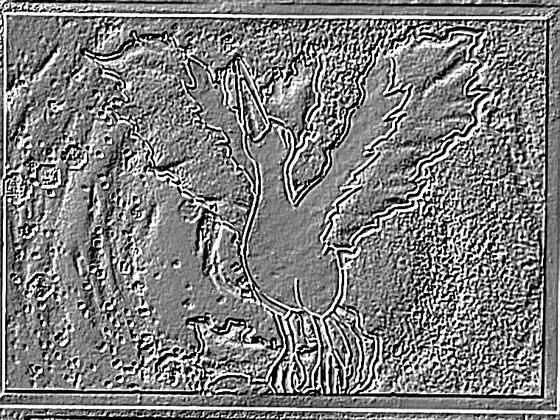
 Relief
Scratches & dents
Turns the card grey and 3D. Move the light slider until the flaw pops.
Filters that make scratches, print lines, dents and whitening pop. Use a photo or a loupe video. Nothing leaves your device.
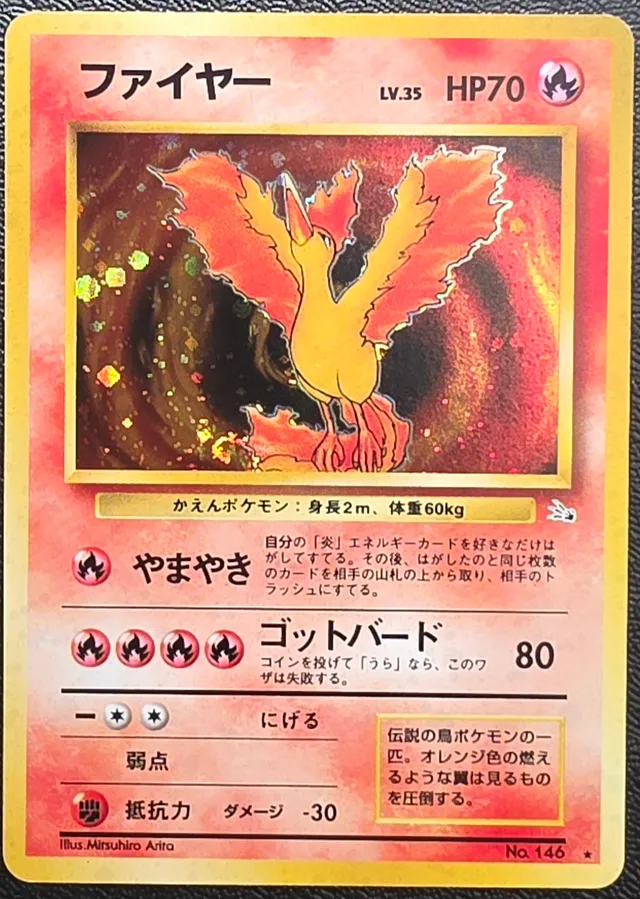
 PhotoRelief filter
Slide to the sharpest frame (where the scratch or corner is in focus), then press "Use this frame". New to this? See how to record a loupe video.
Pinch or double-tap the card to zoom. Drag with one finger to look around.
What did you find? Check both sides, then pick the worst you saw. The grading calculator fills it in.
This tool helps you see the surface; it does not grade it. The final grade always comes from the grading company.
Real examples from my own cards. Pick the filter for the flaw you're hunting.
ReliefTurns the card grey and 3D. Move the light slider until the flaw pops.
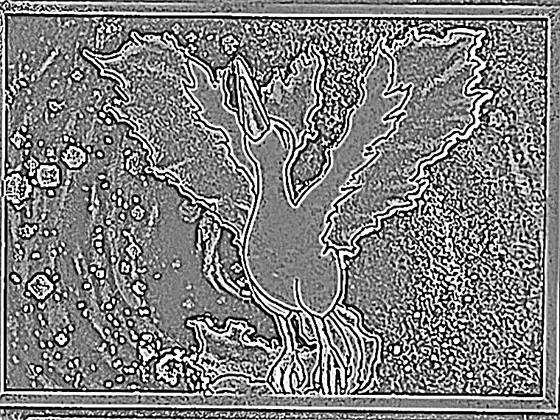 Fine lines
Keeps only thin lines: print lines, hairlines, fingerprints.
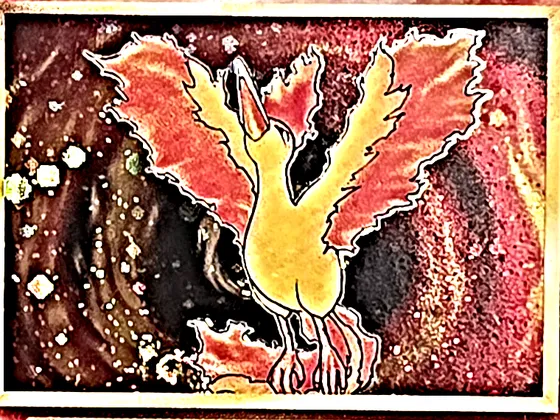 Local contrast
Keeps the colors and sharpens small details in dark artwork.
White wear on corners and edges lights up pink. Clean edges stay dark.
 Invert
Flips the colors so chips and dents on dark borders stand out.
Double-check on the real card. Holo patterns and textured cards can look like flaws. Use the before/after slider.
One trick does most of the work: a low light from the side.
Full list: pre-grading checklist
No. It only makes flaws easier to see. Grading depends on many things a photo can't capture reliably, and the final grade always comes from the grading company.
No. Everything is processed in your browser on your own device. Nothing is sent to a server, and nothing is kept after you close the page.
Some browsers can't play iPhone HEVC (.mov) videos. Open the page in Safari, or export the video as MP4 and try again. You can also take a screenshot of the sharpest frame and upload that instead.
There's no upload limit, because nothing is uploaded: your browser reads the video straight from your device. Very long or very large videos (several minutes or over 1 GB) can make scrubbing slow, especially on older phones, so short clips of under a minute work best.
A sharp, close photo of the card out of its sleeve, lit by a single low light from the side. Take a few photos with the light coming from different directions.